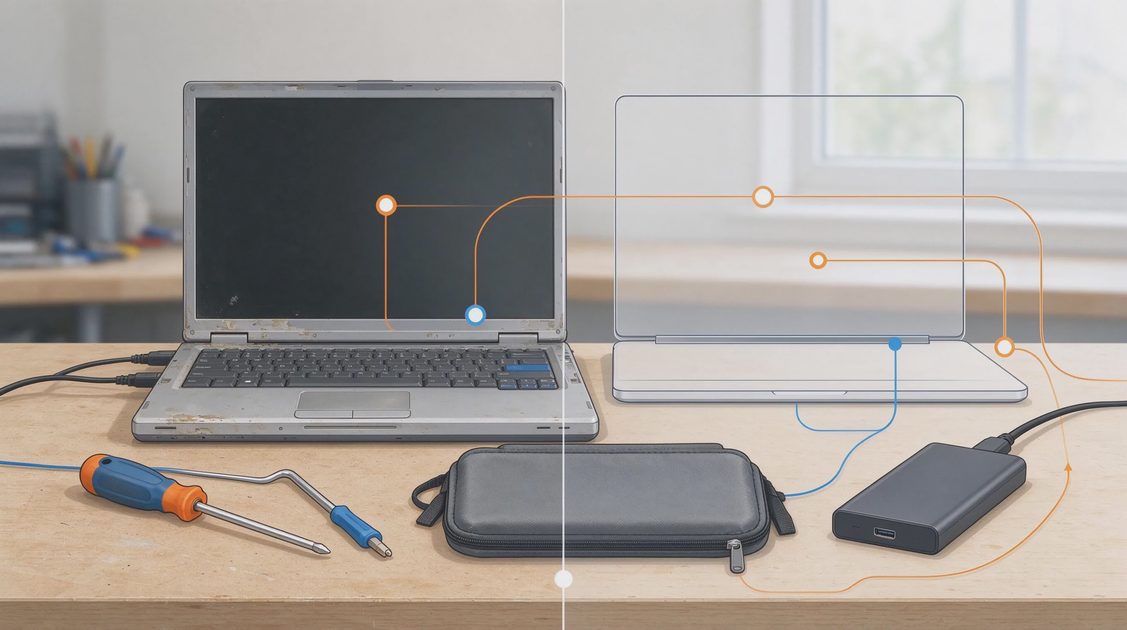
Down here in my Boise workshop, expanding storage is the single most common hardware upgrade laptop owners bring to my bench. Modern AAA games, high-resolution 4K video media, and local AI model weights consume 512GB or 1TB stock drives in a matter of months. The spec sheet lists your stock drive capacity, but expanding your storage gives your laptop room to grow for years. Today, we are walking through a step-by-step guide to upgrading your M.2 NVMe SSD safely without losing data or voiding your warranty.
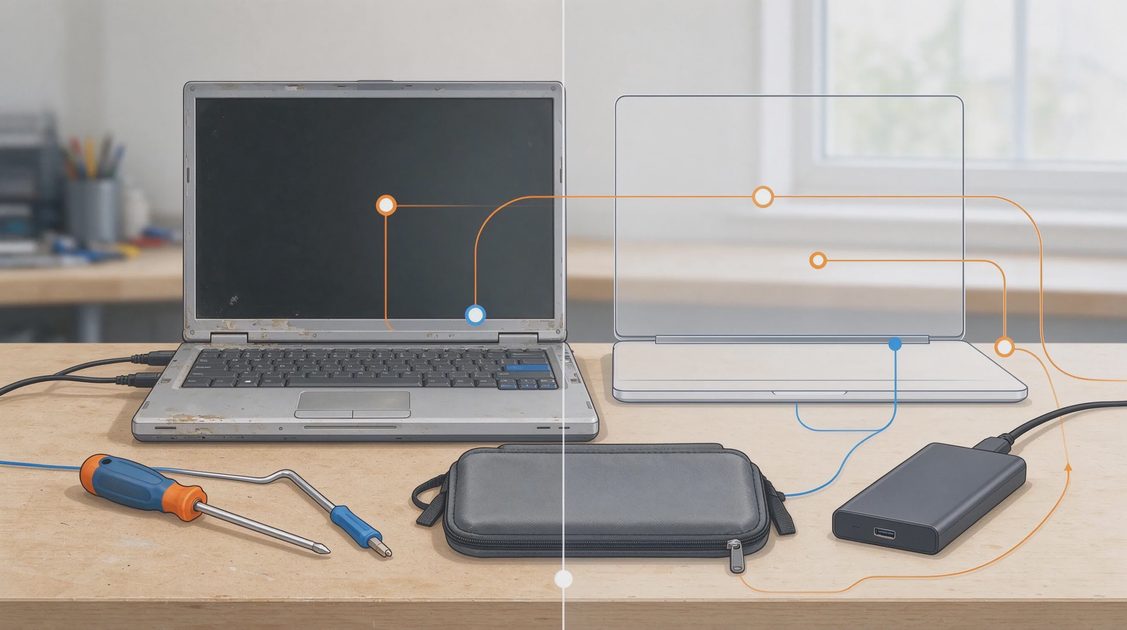
Understanding M.2 NVMe Drive Form Factors and PCIe Speeds
Before purchasing a shiny new solid-state drive online, you must identify the exact physical form factor and PCIe interface generation supported by your specific ASUS laptop model. M.2 NVMe SSDs come in various physical lengths, designated by four-digit numbers like 2280, 2242, or 2230. The first two digits (22) indicate drive width in millimeters, while the last two digits indicate length.
Most standard 14-inch, 15-inch, and 16-inch laptops—such as ROG Strix, TUF Gaming, ProArt, and Zenbook models—utilize standard M.2 2280 drives. Compact handhelds like the original ROG Ally utilize smaller M.2 2230 drives, while newer handheld revisions accept full-sized 2280 drives natively. Purchasing the wrong physical length means your new SSD won't line up with internal mounting screw standoffs inside your laptop chassis.
Next, verify whether your motherboard supports PCIe Gen 3, Gen 4, or Gen 5 data speeds. While PCIe generations are backward and forward compatible—meaning a Gen 4 drive will work in a Gen 3 slot at reduced speeds—matching your new drive to your system's native generation guarantees optimal speed per dollar spent. For most modern laptops, choosing a fast PCIe Gen 4 x4 M.2 NVMe drive delivers blazingly fast 7000MB/s read speeds at reasonable prices.
Clarifying Manufacturer Warranty Policies and Anti-Tamper Seals
A major anxiety holding owners back from upgrading their own laptop storage is fear of voiding their manufacturer warranty. Many users inspect the bottom chassis of their laptop, see tiny screws, and worry that opening the case automatically voids their consumer protections. In the United States, consumer protection laws like the Magnuson-Moss Warranty Act protect your right to upgrade user-serviceable components like storage and RAM.
ASUS officially allows end-users to open their laptops to upgrade internal storage drives and memory without voiding the overall system warranty, provided you do not physically damage internal components during the process. If a secondary component fails later down the road—such as a display hinge or Wi-Fi module—warranty coverage remains completely valid as long as your upgrade work didn't cause the fault.
However, keep in mind that manufacturer warranty coverage does not extend to third-party aftermarket SSDs you install yourself. If your new self-installed drive fails, you must claim warranty coverage through the drive manufacturer (such as Samsung, Western Digital, or Crucial) rather than ASUS support. Keeping your original stock SSD safely stored in an anti-static bag is a smart practice in case you ever need to send the laptop in for factory chassis repairs.
Phase 1: Preparing Your System and Cloning Your Existing OS Drive
When upgrading your primary boot drive, you have two distinct software pathways: performing a clean installation of Windows 11 from a bootable USB drive, or cloning your existing operating system, installed applications, and personal files directly onto the new SSD. Cloning is far more convenient because it preserves your exact desktop layout, license keys, and game saves without needing to reconfigure software from scratch.
To clone your drive successfully, purchase an inexpensive external USB-to-NVMe enclosure. Insert your new high-capacity SSD into the external enclosure, plug it into your laptop's high-speed USB-C port, and launch reliable cloning software like Macrium Reflect Free, Hasleo Disk Clone, or Acronis Cyber Protect. Select your internal stock drive as the source and your new external enclosure drive as the target destination.
Ensure you expand the primary OS partition during the cloning setup process so your new drive utilizes its full target capacity rather than duplicating the smaller original partition size. Execute the clone operation, which typically takes between ten and twenty minutes depending on data volume, then shut down your computer completely once the cloning process reaches 100% completion.
Phase 2: Teardown Walkthrough, ESD Safety, and SSD Swapping
With your drive cloned successfully, clear a clean, well-lit workspace on a non-conductive desk surface. Gather proper precision screwdrivers (typically a PH0 or PH00 Phillips head), a plastic pry spudger tool, and anti-static precautions. Ground yourself by touching a grounded metal object before opening the computer chassis to prevent electrostatic discharge (ESD) from damaging delicate internal microelectronics.
Remove all lower chassis screws carefully, noting that some ASUS laptops utilize varying screw lengths or captive corner screws designed to pop open the chassis edge slightly. Use your plastic spudger tool to gently unclip perimeter plastic latches working around the chassis edge until the bottom panel releases cleanly. Lift the back cover away to expose internal fans, heat pipes, battery assembly, and M.2 SSD slots.
Before touching the SSD, always disconnect the internal battery ribbon connector from the motherboard to remove active electrical voltage from system traces. Locate the M.2 SSD slot, remove the single retaining mounting screw, and gently slide the old drive out at a 30-degree angle. Slide your new cloned NVMe SSD into the M.2 slot firmly, secure it with the mounting screw, reattach internal copper thermal shields or thermal pads, and reconnect the main battery cable.
To help you organize your SSD upgrade project cleanly, the following table summarizes essential steps and technical checkpoints across the teardown process:
Upgrade Stage | Critical Action Required | Common Pitfall to Avoid | Recommended Tool |
Drive Selection | Confirm form factor (2280 vs 2230) | Buying wrong length or SATA M.2 | System manual / spec check |
Data Cloning | Clone OS & expand partition | Forgetting to scale C: drive size | USB NVMe Enclosure & Macrium |
Chassis Access | Use plastic pry tools carefully | Stripping tiny chassis screws | PH0 Precision Driver & Spudger |
Electrical Safety | Disconnect internal battery link | Shorting board with metallic tools | Plastic spudger / ESD Strap |
Thermal Protection | Transfer thermal pad to new SSD | Running drive without heat shield | Aftermarket 1mm Thermal Pad |
Following this checklist ensures a smooth physical teardown without damaged chassis clips or stripped screws. Taking your time during hardware installation guarantees a professional outcome.
Phase 3: Post-Installation BIOS Verification and Partition Checks
Reattach the bottom chassis cover, secure two corner screws temporarily, and power on your laptop while tapping the Delete or F2 key repeatedly to enter the ASUS BIOS Utility screen. Navigate to the Storage or NVMe Configuration tab to verify that the system BIOS recognizes your new drive's full brand name and storage capacity correctly.
If the new drive displays cleanly in the BIOS, save settings, exit, and allow Windows 11 to boot up. The system should boot directly into your familiar desktop within seconds, operating identically to your original setup but with vast extra storage space. Open Windows Disk Management (by right-clicking the Start button) to verify that your C: drive reflects its expanded new capacity cleanly without unallocated black space sitting idle.
If your laptop features dual M.2 NVMe slots—as found on many ROG Strix, TUF Gaming, and ProArt models—you can retain your original stock drive in Slot 1 and simply slide your new drive into Slot 2 as a dedicated secondary game or media storage volume. This secondary drive setup requires zero OS cloning, making storage expansion as simple as inserting a drive, screwing it down, and formatting it inside Windows Disk Management.

Final Verdict: Master Your Storage for Long-Term Growth
Upgrading your laptop M.2 NVMe SSD is one of the most cost-effective, satisfying hardware improvements you can make. It eliminates constant game deletion frustration, provides spacious local storage for 4K video media or AI models, and extends your machine's functional lifespan significantly.
By selecting the correct form factor, cloning your data carefully, disconnecting the battery during installation, and preserving thermal pads, you achieve a professional storage upgrade at home. The spec sheet listed your old drive capacity, but your upgraded drive gives you total computing freedom.

No signals yet — transmit the first.