
Back in my Boise workshop, I have heard plenty of bold claims about mobile processors replacing desktop towers. Manufacturers love to promise that a handheld device can drive your entire daily workflow. Being naturally skeptical of marketing hype, I decided to run a strict seven-day test. I unplugged my primary desktop rig, stashed it under the workbench, and hooked the ROG Ally X straight into my office setup. We are going to look past the spec sheet and examine how a compact handheld handles real daily workloads.

Unplugging the Tower: Setting Up the Docking Station
Transitioning a portable handheld into a permanent desktop replacement starts with building a reliable peripheral connection hub. I mounted the device onto an adjustable aluminum stand on my workbench, running a single high-speed USB-C cable into a powered multi-port docking station. That hub managed output to my primary 27-inch gaming monitor, linked a mechanical keyboard and precision mouse, established a stable wired network connection, and delivered steady power.
Configuring Windows 11 for a docked environment required careful display scaling adjustments to ensure crisp visual output across multiple monitors. Out of the box, mobile operating systems treat external displays with cautious resolution caps that require manual overrides. Setting up custom resolution profiles and arranging monitor workspaces properly made the multi-screen desktop environment feel natural, eliminating the awkward cursor warping that often plagues quick monitor swaps.
Using Armoury Crate, I established a dedicated "Docked Performance" profile to lock the APU into a sustained high-wattage power target. This configuration kept internal processing speeds steady during heavy workloads without letting temperatures spike into dangerous territory. Building a solid foundation on day one proved essential for testing whether a portable chip could actually handle the grueling demands of a full office and creative schedule.
Office Workflows and Multitasking with 24GB of Memory
Days one and two pushed the hardware through standard office productivity, heavy web research, and corporate communication applications. My typical daily routine involves keeping dozens of browser tabs open across multiple windows, running background communication apps, streaming audio, and managing complex spreadsheets. Smaller mobile devices often stutter under this kind of memory pressure, but the expanded memory capacity on this model changed the equation entirely.
The 24GB of high-speed system memory provided plenty of headroom for seamless application switching without running into frustrating slowdowns or forced background reloads. Allocating a sensible chunk of memory to the integrated graphics while keeping ample RAM free for Windows processes kept system responsiveness crisp. Documents opened instantly, large PDFs scrolled without hitching, and video conference calls ran cleanly without audio desynchronization issues.
Throughout these routine office tasks, the internal cooling fans remained virtually silent, humming along quietly in the background without drawing any notice. It became easy to forget that the computer driving my dual-monitor setup was built around a handheld chip rather than a massive desktop motherboard. For basic office productivity, web browsing, and administrative work, the docked handheld experience proved remarkably smooth and dependable.
Creative Workloads: Video Editing and Local Image Rendering
Pushing past basic office tasks, days three and four tested the hardware with creative software workloads like photo batch processing and video editing. Editing 4K video timelines usually requires serious processing horsepower, fast storage read speeds, and dedicated GPU acceleration to keep playback smooth during timeline scrubbing. I loaded up several high-bitrate project files to see how the integrated AMD graphics handled real editing tasks.
Thanks to hardware-accelerated video decoding and robust memory bandwidth, timeline playback remained surprisingly fluid when using proxy files and standard color grading layers. Exporting finished video projects took longer than it would on a dedicated water-cooled workstation tower, but the system completed the renders without crashing or triggering thermal shutdowns. Local image generation tools also ran respectably well, leveraging the integrated processing cores to render offline graphics without relying on cloud servers.
However, extended rendering sessions exposed the physical limitations of a compact cooling chassis under sustained maximum loads. While the hardware successfully pushed through every creative task I threw at it, surface temperatures near the exhaust ports climbed noticeably, and fan noise ramped up to an audible hum. For casual creators editing vacation vlogs or social media clips, the machine works wonderfully; professional studio editors with massive multi-layer timelines will still want a dedicated workstation.
Heavy PC Gaming on an External 144Hz Monitor
Midway through the week, the testing focus shifted toward heavy gaming performance on a high-refresh external monitor. Handheld chips are traditionally designed for modest 800p or 1080p mobile screens, so driving a larger desktop display represents a significant step up in graphical workload. I fired up several demanding open-world role-playing games and fast-paced shooters to see how the system handled higher resolutions.
Running games natively at 1080p with medium-to-high graphical settings yielded stable frame rates that felt entirely playable, especially when leveraging smart upscaling technologies. The inclusion of variable refresh rate support on the external monitor smoothed out any minor frame pacing variations, keeping combat sequences feeling responsive and fluid. Fast-paced competitive shooters tracked cleanly without noticeable input lag or distracting stuttering during chaotic team fights.
When pushing games toward higher fidelity settings, the hardware naturally began to show its boundaries, reminding me that I was gaming on mobile silicon. Dropping certain heavy shadow settings and enabling performance scaling features quickly restored smooth frame rates, proving that thoughtful graphical tuning is essential. For casual gaming sessions after finishing work, the docked setup delivered an enjoyable experience that rivaled entry-level prebuilt desktop towers.
Thermal Management, Fan Noise, and Sustained 30W Power
Thermal performance and acoustic output dictate whether a compact system remains pleasant to live with over an extended period. Running a mobile APU at a sustained 30-watt desktop profile pushes thermal dissipation limits to the extreme inside a tiny chassis enclosure. Throughout days five and six, I monitored internal core temperatures and fan noise levels closely during multi-hour gaming and rendering stress tests.
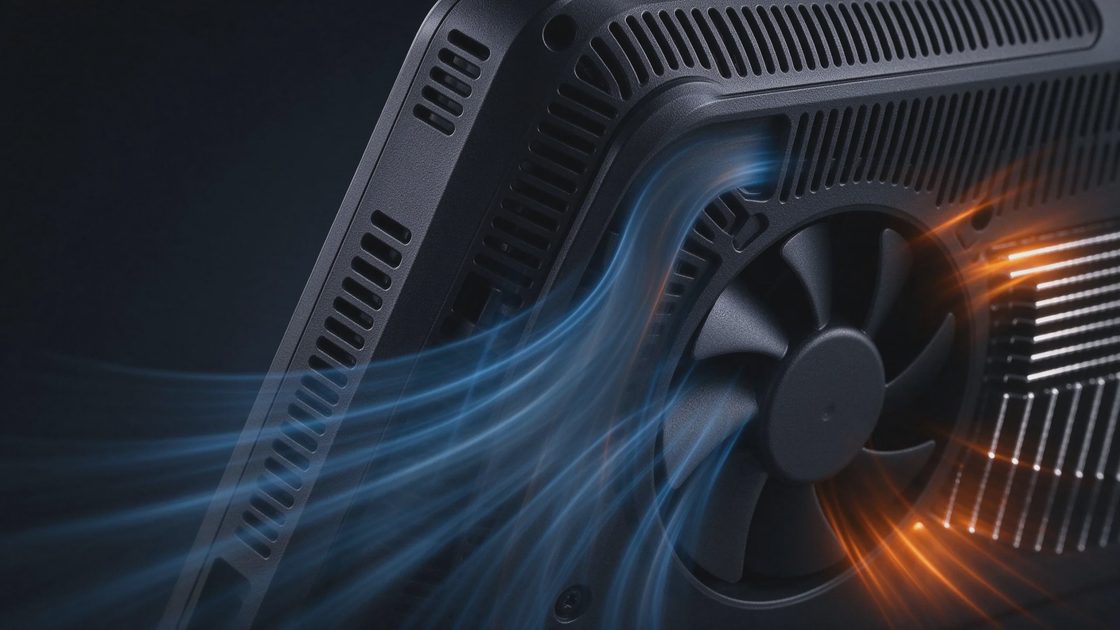
The internal dual-fan cooling layout moved air efficiently, keeping core temperatures stabilized within safe operating thresholds throughout grueling benchmark loops. However, maintaining those safe temperatures required the fans to spin at higher RPMs, generating a noticeable high-pitched whir. While the noise level remained far quieter than a screaming server rack, it was loud enough that you would definitely want a good pair of gaming headphones during long sessions.
Heat distribution across the dock and chassis housing remained well-managed, avoiding the alarming hot spots that plague poorly designed mini-PCs. The external power brick ran warm during heavy charging phases, but it never showed signs of thermal stress or voltage sag. For a device packing so much computing power into such a tiny physical footprint, the engineering team did an admirable job keeping thermal throttling under tight control.
The Unavoidable Friction Points of Daily Desktop Mobile Use
Running an extended experiment of this nature inevitably highlights the minor practical annoyances that manufacturers rarely mention in promotional marketing materials. The most immediate friction point involves port availability and cable clutter around the desktop workspace. Because the primary computing unit sits vertically on a stand rather than resting under a desk, power cables, display wires, and USB dongles drape across your desk surface awkwardly.
Another recurring annoyance involves the software transition between docked desktop mode and undocked mobile handheld use. Windows 11 occasionally struggled to reconfigure display scaling and icon arrangements instantly when unplugging the device from the docking station, requiring manual display tweaks upon waking up. Furthermore, managing background application windows using only a handheld controller or a small touchscreen when undocked can feel tedious compared to a full desktop environment.
These friction points do not break the overall concept, but they serve as a realistic reminder that compromises come with unconventional setups. You are trading the modular upgradability and clean cable management of a standard desktop tower for ultimate portability. If you enjoy tinkering with settings and appreciate having your entire digital life packed into a device that fits inside a backpack, these minor annoyances are easy to forgive.
Final Take After Returning to the Desktop
I plugged the desktop back in on day eight with mixed feelings. The Ally X handled the week better than any previous handheld I have tested as a daily driver. The combination of solid performance, excellent battery, and native Game Pass access makes it a genuine alternative for a large group of American gamers. It is not yet a complete replacement for everyone, but it is closer than the marketing ever admits.
If your current desktop is mostly gathering dust between gaming sessions, try the same experiment. Dock it, live with it, and see which friction points actually bother you. The devices that survive real ownership are the ones worth recommending. The spec sheet tells you what it can do. The setup tells you whether you’ll enjoy it.
No signals yet — transmit the first.